
To add a custom blog layout to your website, simply create a new blank page, set it as your static posts page in your Reading Settings, and use the Gutenberg Site Editor to assign or build a custom template. This quick setup gives you total control over how your articles look without needing to write any complex code or hire an expensive developer.
You can easily design a high-performing, beautiful layout in just a few minutes. This complete step-by-step guide will show you how to add blog template in wordpress using clear, simple methods that anyone can follow.
What Is a Blog Template in WordPress?
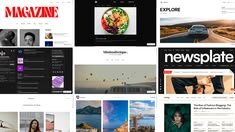
A blog template is a pre-designed layout that controls how your articles look on your site. Unlike a standard page where you type static content, a blog template dynamically pulls your latest articles from your database. It then displays them in a structured grid, list, or classic style.
In the modern Gutenberg era, a template is built using block patterns and design elements. These elements include the Post Title block, Query Loop block, and Post Featured Image block. When you update this central layout, every single post or archive page using it updates instantly. This saves you from editing each post individually.
Why Use a Blog Template?
Using a custom layout offers several major benefits for your site:
Visual Consistency: It ensures your brand colors, typography, and spacing remain identical across all articles.
Better Engagement: Well-structured layouts make your content easier to read, which keeps visitors on your site longer.
Simple Management: You can change sidebars, call-to-action buttons, or author boxes globally in one place.
Optimized Performance: Clean, native templates load much faster than pages built with heavy third-party builders.
Things to Do Before Adding a Blog Template
Taking a few minutes to prepare will prevent common layout issues down the road. Complete these basic steps before you begin:
Back Up Your Site: Use a reliable plugin to save a complete copy of your database and files.
Check Your Theme: Ensure you are using a modern block theme if you want to use the native Site Editor.
Draft Sample Posts: Write two or three test posts with featured images so you can see your live layout design as you build it.
How to Add a Blog Template in WordPress
There are two primary ways to set up your layout. The first method uses the modern Site Editor, while the second method uses traditional page templates for classic themes.
Method 1: Using the Modern Site Editor (FSE)
If you use a block-enabled theme, you can build and apply your layout directly through the dashboard.
1.Open the Editor
Navigate to your dashboard, click Appearance, and select Editor.
2.Access Templates
Click on the Templates option in the left-hand sidebar menu.
3.Add a New Template
Click the + (plus) icon at the top of the menu and select the Blog Home or Front Page template from the list.
4.Insert the Query Loop Block:
Add a Query Loop block to the canvas. This block automatically fetches and displays your posts.
5.Save Your Layout
Customize the design and click Save in the top right corner.
Method 2: Using Classic Theme Templates
If you use a classic theme that does not support the Site Editor, you can use built-in page attributes.
- Go to Pages and click Add New.
- Name your page “Blog”.
- Look at the right-hand sidebar and expand the Page Attributes section.
- Select your theme’s default blog layout from the Template dropdown menu.
- Click Publish.
How to Assign a Blog Template to a Page
Once your layout is ready, you must tell the system to use this specific page to display your articles. This step connects your design to your actual post feed.
Step 1: Create Your Pages
You need two separate pages on your site. Go to Pages > Add New and create:
- A page named “Home” (for your landing page).
- A page named “Blog” (for your article feed). Keep this page completely blank.
Step 2: Configure Reading Settings
Go to Settings > Reading in your dashboard. Under the Your homepage displays section, choose A static page.
Select your “Home” page for the Homepage dropdown, and select your “Blog” page for the Posts page dropdown. Click Save Changes.
How to Customize a Blog Template
An effective layout needs to look great and guide readers to your key pages. You can easily customize your layout using the default block settings.
1. Configure the Query Loop
Click on the Query Loop block inside your editor. In the block sidebar, you can change the number of posts shown per page, filter articles by specific categories, or adjust the sorting order.
2. Arrange Your Post Elements
Inside the loop, you can drag and drop elements. You can place the featured image above the title, add the post author, or insert a “Read More” button.
3. Add a Sidebar
To add a sidebar, insert a Columns block with a 70/30 split. Put your Query Loop in the wide left column, and add search bars, social links, or category lists in the narrow right column.
Best Practices for a Blog Template
Keep these fundamental design rules in mind to ensure your layout performs well for visitors and search engines:
Optimize for Mobile Devices: Double-check your layout on mobile screens. Ensure text size is readable and buttons are easy to tap.
Keep Code Light: Avoid heavy design elements that slow down your page loading speed.
Include Clear Navigation: Add a search bar and category filters so readers can easily find other articles.
Show Clear Post Excerpts: Do not show full articles on your index page. Use short excerpts to keep the layout tidy.
Common Issues When Adding a Blog Template
If your layout is not displaying correctly, don’t worry. These common issues are simple to fix:
The Layout Is Completely Blank
This usually happens if you forgot to publish your posts, or if your Query Loop block has incorrect category filters active. Ensure you have published articles and clear any active filters.
Changes Are Not Showing Live
This is almost always a caching issue. Clear your browser cache, empty your site optimization plugin cache, and check the page again in an incognito window.
Styling Is Broken or Messy
If blocks overlap, your theme CSS might be conflicting with your block settings. Try resetting the block spacing to default values in the style panel.
How to Add a Blog to Your Website (Alternative Options)
If you are setting up a brand-new site, you might want to explore other ways to display your writing. Here are the three most common alternatives:
Option 1: How to Add Blog in WordPress
If you want a simple setup, you do not need to create a custom layout. You can simply install a default theme like Twenty Twenty-Four. Go to Settings > Reading, set your homepage to show “Your latest posts”, and the system will automatically display a clean layout for you. This is the fastest way to get your content online.
Option 2: How to Add a Blog to WordPress Site
For business sites, you can keep your existing landing page and add a dedicated section. Create a new page named “Insights”, set it as your posts page in your Reading settings, and add a link to it in your main navigation menu. This keeps your business pages and writing separate.
Option 3: How to Add a Blog to WordPress (Using Plugins)
If your theme lacks layout options, you can use a free post grid plugin. Install a plugin like Post Grid, use its visual builder to design your list, and paste the generated shortcode onto any standard page.
Option 4: How to Add a Blog to Your Website
If you have an existing non-WordPress site, you can install WordPress in a subdirectory like /blog. This allows you to run your main site on your current platform while using the powerful features of WordPress for your articles.
Conclusion
Setting up a clean, fast-loading layout is one of the best ways to grow your audience and build topical authority. By using the native Gutenberg editor, you can build a highly optimized layout that loads fast and looks professional on all devices.
If you want to master these advanced design techniques and build high-performance websites, check out the professional WordPress Course in Islamabad offered by LocalPro1 Institute. You will get hands-on training from industry experts to take your digital skills to the next level.
FAQs
Can I use different templates for different categories?
Yes. In the Site Editor, you can click Add New Template and select Category. You can then design a unique layout that only applies to specific post categories.
Do I need to write code to create a custom template?
No. Modern block themes allow you to build, arrange, and style your entire layout visually using drag-and-drop blocks.
Why is my custom template not showing on mobile?
This is usually caused by outdated caching or CSS issues in your theme. Ensure your page layouts are fully responsive in the editor preview before saving.