

SEO Practically

Website development

Explore professional web development services, including custom websites, eCommerce solutions, and responsive designs built for performance and growth.

How Long Does It Take to Become a Web Developer

How Long Does It Take to Become a Web Developer?

Most people ask this question before they even open a coding tutorial. It makes sense. You want to know if this is a six month plan or a two year plan. The honest answer is that how long does it take to become a web developer depends on your path, your daily study time, and the type of developer role you want. This guide breaks down every path with real timelines. You will also get a clear roadmap, the skills you actually need, and honest advice on whether the effort is worth it. What Is Web Development? Web development means building and maintaining websites and web apps. It covers everything from a simple landing page to a large online store with a login system and a database behind it. Web development splits into three main areas. Front end covers what users see and click on a page. Back end covers the server, database, and the logic that runs behind the scenes. Full stack covers both sides. Each area needs different tools and skills. This is why the timeline changes based on which path you pick. A front end path uses HTML, CSS, and JavaScript. A back end path adds server languages, databases, and APIs. Web Development Roadmap | Step by Step Before we break down each specific path, here is a simple web development roadmap most learners follow, no matter which specialty they choose. Step 1: Learn the basics. Start with HTML and CSS. These build the structure and look of a webpage. Most beginners finish this stage in three to five weeks with steady daily practice. Step 2: Learn JavaScript. JavaScript makes a page interactive. Buttons, forms, and animations all rely on it. This stage usually takes four to eight weeks since JavaScript has more logic to learn. Step 3: Pick your specialty. Choose front end, back end, or full stack based on what excites you and where local job demand sits. Step 4: Learn tools and frameworks. This includes Git for version control, a framework like React for front end, or Node.js and databases for back end work. Step 5: Build real projects. Projects prove your skills. Aim for three to five solid projects that solve a real problem, not just copies of tutorials. Step 6: Apply for jobs or internships. Once your portfolio is ready, start applying. This stage often takes one to three extra months on its own. This roadmap gives you a clear picture of what a full web development learning timeline looks like from day one to your first job offer. Read More: Does WordPress Have a Future? How Long Does It Take to Become a Front-End Developer? Front end development is often the fastest way to become job ready. Most learners reach a solid front end skill level in three to five months if they study around twenty hours a week. Front end covers HTML, CSS, JavaScript, and a framework such as React or Vue. Once you understand these four pieces, you can build real, working websites. If you study part time, around eight to ten hours a week, expect this timeline to stretch to seven or eight months. The core skills stay the same. What changes is how many hours you put in each week. How Long Does It Take to Become a Full-Stack Developer? Full stack development takes longer since you learn both front end and back end skills. Most learners need six to nine months of focused study to reach a job ready level. This path includes HTML, CSS, and JavaScript on the front end. On the back end, you add a language like Node.js or Python, plus a database such as MongoDB or MySQL. You also learn how both sides connect through APIs. Full stack developers are valuable to companies since one person can build an entire feature alone. This is also why the learning timeline runs longer than a single specialty path. How Long Does It Take to Become a Back-End Developer? Back end development often takes four to seven months to reach a solid level. This path focuses on server logic, databases, security, and how data moves between a website and its server. Back end skills feel less visual than front end work since there is no design on screen to see right away. Many learners find this stage requires more patience since progress is harder to see day to day. Factors That Affect Your Web Development Learning Timeline Several factors decide how long to learn web development for your specific situation. Weekly study hours. More hours each week means faster progress. Someone studying full time will always move faster than someone studying on weekends only. Prior experience. If you already understand logic, math, or basic scripting, you will grasp coding concepts faster than a complete beginner. Learning method. A structured course with a clear order of lessons saves time compared to random YouTube tutorials with no fixed plan. Practice with real projects. Watching tutorials without building anything slows your progress. Projects force you to solve real problems, which builds true skill. Consistency. Studying for one hour daily for six months beats studying for twelve hours in one weekend then stopping for two weeks. The Skills You Need to Become a Web Developer You need both technical skills and a few soft skills to succeed as a developer. Technical skills: HTML and CSS for page structure and design. JavaScript for interactive features. Git and GitHub for version control. A front end framework such as React. Back end basics like Node.js, APIs, and databases if you want a full stack or back end role. Basic understanding of how browsers and servers talk to each other. Soft skills: Problem solving, since most of your day will involve fixing errors and bugs. Patience, since learning to code takes daily repetition. Clear communication, since you will explain your code choices in interviews and team meetings. Employers care more about what you can build than which certificate you hold. A strong

How Long Does It Take to Become a Web Developer? Read More »
how to add blog template in wordpress

How to Add Blog Template in WordPress | Step-by-Step Guide

To add a custom blog layout to your website, simply create a new blank page, set it as your static posts page in your Reading Settings, and use the Gutenberg Site Editor to assign or build a custom template. This quick setup gives you total control over how your articles look without needing to write any complex code or hire an expensive developer. You can easily design a high-performing, beautiful layout in just a few minutes. This complete step-by-step guide will show you how to add blog template in wordpress using clear, simple methods that anyone can follow. What Is a Blog Template in WordPress? A blog template is a pre-designed layout that controls how your articles look on your site. Unlike a standard page where you type static content, a blog template dynamically pulls your latest articles from your database. It then displays them in a structured grid, list, or classic style. In the modern Gutenberg era, a template is built using block patterns and design elements. These elements include the Post Title block, Query Loop block, and Post Featured Image block. When you update this central layout, every single post or archive page using it updates instantly. This saves you from editing each post individually. Why Use a Blog Template? Using a custom layout offers several major benefits for your site: Visual Consistency: It ensures your brand colors, typography, and spacing remain identical across all articles. Better Engagement: Well-structured layouts make your content easier to read, which keeps visitors on your site longer. Simple Management: You can change sidebars, call-to-action buttons, or author boxes globally in one place. Optimized Performance: Clean, native templates load much faster than pages built with heavy third-party builders. Things to Do Before Adding a Blog Template Taking a few minutes to prepare will prevent common layout issues down the road. Complete these basic steps before you begin: Back Up Your Site: Use a reliable plugin to save a complete copy of your database and files. Check Your Theme: Ensure you are using a modern block theme if you want to use the native Site Editor. Draft Sample Posts: Write two or three test posts with featured images so you can see your live layout design as you build it. How to Add a Blog Template in WordPress There are two primary ways to set up your layout. The first method uses the modern Site Editor, while the second method uses traditional page templates for classic themes. Method 1: Using the Modern Site Editor (FSE) If you use a block-enabled theme, you can build and apply your layout directly through the dashboard. 1.Open the Editor Navigate to your dashboard, click Appearance, and select Editor. 2.Access Templates Click on the Templates option in the left-hand sidebar menu. 3.Add a New Template Click the + (plus) icon at the top of the menu and select the Blog Home or Front Page template from the list. 4.Insert the Query Loop Block: Add a Query Loop block to the canvas. This block automatically fetches and displays your posts. 5.Save Your Layout Customize the design and click Save in the top right corner. Method 2: Using Classic Theme Templates If you use a classic theme that does not support the Site Editor, you can use built-in page attributes. Go to Pages and click Add New. Name your page “Blog”. Look at the right-hand sidebar and expand the Page Attributes section. Select your theme’s default blog layout from the Template dropdown menu. Click Publish. How to Assign a Blog Template to a Page Once your layout is ready, you must tell the system to use this specific page to display your articles. This step connects your design to your actual post feed. Step 1: Create Your Pages You need two separate pages on your site. Go to Pages > Add New and create: A page named “Home” (for your landing page). A page named “Blog” (for your article feed). Keep this page completely blank. Step 2: Configure Reading Settings Go to Settings > Reading in your dashboard. Under the Your homepage displays section, choose A static page. Select your “Home” page for the Homepage dropdown, and select your “Blog” page for the Posts page dropdown. Click Save Changes. How to Customize a Blog Template An effective layout needs to look great and guide readers to your key pages. You can easily customize your layout using the default block settings. 1. Configure the Query Loop Click on the Query Loop block inside your editor. In the block sidebar, you can change the number of posts shown per page, filter articles by specific categories, or adjust the sorting order. 2. Arrange Your Post Elements Inside the loop, you can drag and drop elements. You can place the featured image above the title, add the post author, or insert a “Read More” button. 3. Add a Sidebar To add a sidebar, insert a Columns block with a 70/30 split. Put your Query Loop in the wide left column, and add search bars, social links, or category lists in the narrow right column. Best Practices for a Blog Template Keep these fundamental design rules in mind to ensure your layout performs well for visitors and search engines: Optimize for Mobile Devices: Double-check your layout on mobile screens. Ensure text size is readable and buttons are easy to tap. Keep Code Light: Avoid heavy design elements that slow down your page loading speed. Include Clear Navigation: Add a search bar and category filters so readers can easily find other articles. Show Clear Post Excerpts: Do not show full articles on your index page. Use short excerpts to keep the layout tidy. Common Issues When Adding a Blog Template If your layout is not displaying correctly, don’t worry. These common issues are simple to fix: The Layout Is Completely Blank This usually happens if you forgot to publish your posts, or if your Query Loop block has incorrect category filters active. Ensure you have published

How to Add Blog Template in WordPress | Step-by-Step Guide Read More »

What Is WordPress Used For

What Is WordPress Used For? A Complete Beginner’s Guide

Search what is WordPress used for and the results tend to repeat the same generic points about blogging and flexibility. The reality is more specific: WordPress powers a substantial share of websites globally, not because of trends, but because it handles core website functions, publishing content, managing a store, updating pages, without requiring a developer for every change. This guide moves past the surface-level explanation and outlines what WordPress actually does, who it serves best, and where it offers a genuine advantage over other platforms. Understanding What WordPress Is Used For Where It Started WordPress launched as a blogging tool back in 2003. That origin still shows in how content-first the platform feels, but it’s grown well past that into a full content management system. What It’s Actually Used For Today Businesses run everything from company websites to online stores, portfolios, membership platforms, and news sites on it. The core idea hasn’t changed much: separate the content from the technical structure underneath it, so someone without coding knowledge can update a page without breaking anything. What Is a WordPress Website? WordPress.org vs WordPress.com This trips people up constantly. A WordPress website usually means one built on WordPress.org, self-hosted, fully customizable, full control over plugins and design. WordPress.com is the more limited, hosted version, fine for a personal blog, restrictive for a business that wants real flexibility. Why the Distinction Matters Most professional and business sites run on WordPress.org specifically because of that control. Picking the wrong one early on usually means migrating later, which costs more time and money than getting it right the first time. Why Use WordPress? The Plugin Ecosystem Thousands of plugins exist for nearly anything a website needs, SEO tools, contact forms, e-commerce functionality, security. Instead of custom-building each feature, most of what a business needs already exists as a plugin someone else built and maintains. Scalability Without Starting Over A small business site can grow into a full e-commerce operation without switching platforms entirely. That matters more than people realize, rebuilding a website from scratch every time a business grows gets expensive fast, and WordPress mostly avoids that problem. Is WordPress Easy to Use? For Basic Content Work Adding pages, uploading images, publishing a blog post, none of that requires technical training. The dashboard is built for people who’ve never touched code. For Anything More Advanced Custom theme edits or deeper plugin configuration is a different story. That’s usually where a developer, or at least someone with real WordPress experience, becomes worth hiring instead of guessing through tutorials. What Makes WordPress a Better Platform for Managing a Website? Cost Structure The core software is free and open-source. Money goes toward hosting, a domain, and maybe premium plugins or themes, not recurring licensing fees the way some proprietary platforms charge. Community and Documentation Because so many people use it, documentation and tutorials are everywhere. Stuck on something at midnight? Someone’s already written about it. Built-In SEO Advantages WordPress sites are structured in a way search engines can crawl and index cleanly, especially with a solid SEO plugin and clean site architecture behind it. That’s part of what makes what is a WordPress website such a common search, people are trying to understand if the platform will actually help them get found online, not just look decent. Off-the-Shelf WordPress Themes vs Custom WordPress Themes When a Pre-Built Theme Makes Sense Fast, cheap, functional. A small business or individual who needs something live quickly can grab a theme, drop in content, and launch within days. When Custom Actually Pays Off A custom theme costs more upfront but gets built specifically around a brand’s identity and functional needs. Better performance, unique design, no fighting against a theme’s built-in limitations. Worth it once a business outgrows generic templates. Common WordPress Use Cases Across Industries E-Commerce and Retail Plugins like Woo Commerce turn a standard WordPress site into a fully functional store, inventory, checkout, payment processing, all of it. Education and Nonprofits Schools use it to manage course content and student portals. Nonprofits run donation pages and outreach campaigns through it. Local Service Businesses Law firms, medical practices, restaurants, WordPress handles bookings, service pages, and up-to-date business information without needing a custom-built system for something this common. This spread of use cases is really what defines the benefits of WordPress, it’s not locked into one type of business or one kind of website. Conclusion What is WordPress used for really depends on what you’re trying to build, but its flexibility covers everything from a simple blog to a full business platform. Affordable, scalable, and genuinely useful for search visibility when it’s set up right. LocalPro1 Institute provides wordpress course in Rawalpindi, including WordPress strategy and optimization support. Contact LocalPro1 Institute to talk through building or improving a WordPress website. FAQs What can WordPress be used for besides blogging? E-commerce stores, business websites, portfolios, membership platforms, and educational sites, among other things. Is WordPress free to use? The core software is free. Costs come from hosting, a domain, and any premium plugins or themes you choose to add. Do I need coding skills to use WordPress? No, not for basic content management. Advanced customization usually benefits from development experience. What is the meaning of WordPress in simple terms? It’s a content management system that lets people build and manage a website without writing code from scratch. Is WordPress good for small businesses? Yes, its affordability and wide plugin selection make it a practical starting point for most small businesses.

What Is WordPress Used For? A Complete Beginner’s Guide Read More »

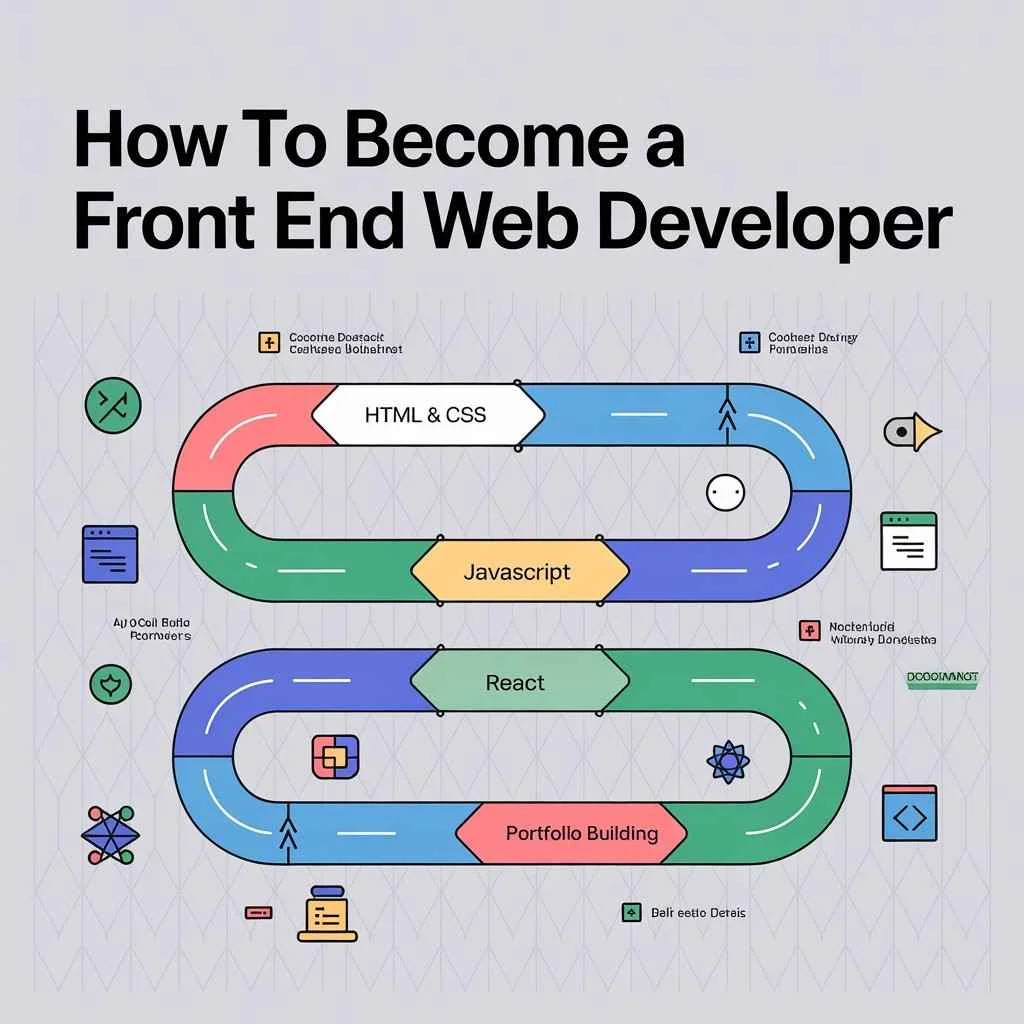
An infographic titled "How To Become a Front End Web Developer" featuring a stylized, looping racetrack design that illustrates a four-stage career path. The track begins with "HTML & CSS" for structure and design, moves into "Javascript" for interactivity, advances to "React" for modern framework proficiency, and concludes with "Portfolio Building" to showcase practical skills. The graphic uses a vibrant color palette of red, blue, green, and yellow with various web development icons scattered around the loops.

How to Become a Front End Web Developer in 2026

Learning how to become a front end web developer is one of the smartest career moves in tech right now. Front end developers build the parts of websites users actually see and click. The demand is high, and the skill set is very learnable. This guide covers every step, from zero knowledge to landing your first job. You will learn which skills matter, what tools to use, and how to build a strong portfolio that gets you hired. What Does a Front End Web Developer Actually Do? A front end developer turns design files into working websites. They write HTML, CSS, and JavaScript to create buttons, menus, forms, and animations. They also make sure sites load fast and look good on all screen sizes. Front end developers work closely with designers and back end developers. They care deeply about user experience and visual performance. Core Skills You Need to Build First HTML and CSS HTML is the skeleton of every webpage. CSS controls how things look. You must know both before touching anything else. Start with HTML tags, document structure, and semantic elements. Then learn CSS layouts, flexbox, grid, and responsive design. JavaScript JavaScript makes pages interactive. It handles clicks, form submissions, pop-ups, and data updates without reloading. Learn variables, functions, arrays, objects, and DOM manipulation. Then move into ES6+ features like arrow functions and async/await. Responsive and Mobile-First Design Every modern site must work on phones. Learn to build layouts that adjust to different screen sizes. Use CSS media queries and flexible grid systems. Tools Every Front End Developer Uses Version control with Git is non-negotiable. Every team uses Git to track code changes and collaborate. Code editors like VS Code are the daily workspace. Learn shortcuts and useful extensions to write code faster. Browser developer tools let you inspect, debug, and test your code right in Chrome or Firefox. Package managers like npm help you install libraries and tools quickly. CSS frameworks like Tailwind CSS or Bootstrap speed up styling. They are not required, but very common in real jobs. JavaScript Frameworks: What to Learn Next After vanilla JavaScript, pick one framework. React is the most popular and most in-demand. Vue.js and Angular are also strong choices. Frameworks help you build complex apps faster. They handle state, routing, and components in a clean, structured way. Focus on React first. It has the largest job market and the biggest community. Once you understand React, other frameworks become easier to learn. How to Build a Portfolio That Gets You Hired A portfolio building process is where most beginners stall. Do not wait until you feel ready. Start building projects from day one. Your portfolio should have three to five real projects. Each project should solve a real problem or build something useful. Good project ideas include a weather app, a to-do list with local storage, a blog layout, and a landing page clone. Push all your code to GitHub. Write clear README files. Hiring managers check GitHub profiles every day. Learning Path: Step by Step Month 1 to 2: Learn HTML and CSS. Build three static websites. Month 3 to 4: Learn JavaScript basics. Add interactivity to your sites. Month 5 to 6: Learn Git and start using VS Code properly. Learn responsive design. Month 7 to 9: Learn React. Build two to three React projects. Month 10 to 12: Apply for jobs. Polish your portfolio. Do code challenges on platforms like LeetCode. Where to Learn Front End Development There are many paths. Some people take bootcamps. Others use free online platforms. Some go to university. If you are in Pakistan and want structured, in-person training,  localpro1institute offers a WordPress Development Course in Rawalpindi that covers front end fundamentals, theme development, and real-world project work. It is a strong starting point if you prefer guided learning with hands-on support. Free resources include MDN Web Docs, freeCodeCamp, and The Odin Project. These are reliable and respected by the developer community. Paid platforms like Frontend Masters and Scrimba offer structured video courses with interactive coding environments. Important Concepts Competitors Often Skip Accessibility Build websites that work for everyone, including people using screen readers. Use proper heading structure, alt text on images, and keyboard navigation. Google rewards accessible sites with better rankings. Web Performance Page speed affects both user experience and SEO. Learn to compress images, reduce JavaScript bundle sizes, and use lazy loading. Tools like Google Lighthouse help you measure and fix performance issues. Browser Compatibility Your code must work across Chrome, Firefox, Safari, and Edge. Test in multiple browsers early. Use tools like Can I Use to check feature support. API Integration Real apps pull data from back end servers. Learn how to use the Fetch API and handle JSON data. Build a project that connects to a public API like OpenWeather or The Movie Database. How to Get Your First Front End Job Apply early, even if you feel underprepared. Most developers get their first job before they feel ready. Write a clear resume that lists your skills, projects, and GitHub link. Keep it to one page. Network on LinkedIn. Share your projects. Comment on other developers’ posts. Hiring managers notice active profiles. Practice coding interviews. Focus on JavaScript fundamentals, problem-solving, and explaining your thought process out loud. Freelancing is another strong starting path. Platforms like Upwork and Fiverr have steady demand for basic website work. Freelance projects also build your portfolio fast. Salary Expectations for Front End Developers Front end developer salaries vary by location and experience. In Pakistan, entry-level front end developers earn between PKR 50,000 and PKR 120,000 per month. Mid-level developers earn significantly more. Globally, the average front end developer salary is around $75,000 to $110,000 per year in the US. Remote work has opened international opportunities for developers everywhere. Staying Updated as a Front End Developer Front end development changes fast. Follow blogs like CSS-Tricks, Smashing Magazine, and the official React blog. Follow developers on X (formerly Twitter) and LinkedIn. Subscribe to newsletters like

How to Become a Front End Web Developer in 2026 Read More »