
SEO Practically

Website development

Explore professional web development services, including custom websites, eCommerce solutions, and responsive designs built for performance and growth.

Can I Make a Website in 3 Days?

Short answer: yes. Longer answer: it depends on what you’re building and how much of the groundwork you’ve already done. I’ve seen beginners launch clean, working sites in three days, and I’ve also seen people still fiddling with a font choice on day five. The difference usually isn’t skill. It’s planning. A three day build works when you split the job into stages instead of trying to design, write, and code all at once. Do that, and the deadline stops feeling impossible. Can I Really Make a Website in 3 Days? Honestly, it comes down to scope more than talent. A five to seven page business site? Realistic. A store with hundreds of products and custom checkout logic? Not in three days, and anyone who promises that is probably cutting corners somewhere. Here’s the part people miss: speed doesn’t come from typing faster. It comes from having your content, images, and domain sorted out before you even open the builder. Most of the delays I’ve watched happen because someone starts building before they know what the page is supposed to say. And no, a three day site doesn’t have to look rushed. With the right platform it can be polished, fast, and genuinely well ranked. The shortcut isn’t in quality. It’s in how you use your time. What Type of Website Can You Build in 3 Days? Not every project fits inside this window, so it helps to check where yours lands before you commit to the deadline. A small business site with a home, about, services, and contact page fits comfortably. So does a portfolio for a freelancer or consultant, a one-product landing page, a simple blog with five to ten starter posts, or a booking page tied to a calendar tool. These are all things a focused person or small team can finish in three days without cutting quality. What doesn’t fit? An online store with custom checkout flows, or a membership site with logins and gated content. Custom coding from scratch is also slower than people expect. Even a basic layout eats real development hours once you start from nothing. How to Build a Website in 3 Days: A Simple Plan I’ll break this into three days because that’s genuinely how it plays out, not because it looks tidy on paper. Day one is planning and prep. Pick your domain and hosting or website builder. Write down the actual pages you need, nothing more. Draft rough text for your homepage and about page. Pull together your logo, photos, and any images you’ll want. Day two is where the site takes shape. Choose a template that fits your brand. Add your homepage, about page, and services or products page. Set up the contact form and a basic menu. Then check it on your phone, not just your laptop screen, because that’s where most of your visitors will actually see it. Day three is polish, testing, and launch. Read every page out loud if you have to catch typos. Add your page titles, meta descriptions, and image alt text. Click every button and submit every form to make sure they actually work. Then connect the domain and go live. This is roughly the pace freelance developers use for a fast WordPress build, and it holds up just as well on no-code platforms. What Do You Need to Build a Website in 3 Days? A handful of things need to already exist before you start the clock, or your three day build quietly becomes a three week one. You’ll want a domain name that matches your brand, hosting or a builder account already set up, your logo and rough brand colors, draft content for each page, and photos for your homepage and key sections. You also need some clarity on what you actually want visitors to do once they land there. If content or images aren’t ready by day one, don’t wait around for someone to send them. Block time and create them fast yourself. Waiting on outside content is, in my experience, the single biggest reason these timelines slip. Can a Beginner Build a Website in 3 Days Without Coding? Yes, and this surprises people every time. Modern website builders use drag and drop editors, ready made templates, and AI tools that can generate a rough layout from a short description. Is it possible to make a website in 3 days if you’ve never built one before? It is, as long as you lean on a template instead of designing from a blank page. Templates already handle spacing, fonts, and mobile layout for you. Your job is mostly swapping in your own words and pictures. Where beginners actually lose time isn’t the build itself. It’s the small design decisions. Testing five color schemes, nudging a button by a few pixels, second-guessing a font choice. That can eat an entire day and leave you with nothing to show for it. Stick with the template defaults for round one. You can always tweak things once the site is live and working. How Can You Make Your Website Better After 3 Days? Think of your three day site as a strong starting point, not a finished product. It doesn’t need to be perfect on launch day. Once it’s live, add more blog posts or service pages over the following weeks. Set up analytics so you can see which pages people actually visit. Collect a few customer reviews and put them on your homepage. Compress your images if pages feel slow. Add schema markup so search engines understand your content better. And check back every few months to update anything that’s gone stale. I’ve noticed businesses in Rawalpindi and Islamabad often skip this last part, and their new site loses momentum within a few months. Search engines tend to reward pages that keep improving, not ones that sit untouched after launch day. Read More: Can I Learn Web Design in 3 Months? Mistakes to Avoid When Building a Website Fast A rushed

Can I Make a Website in 3 Days? Read More »

Will AI Replace Web Developer

Will AI Replace Web Developer? The Real Truth in 2026

Every few months, a new AI tool shows up and people start asking the same question: will AI replace web developer jobs for good? If you search Google today, you will see articles, videos, and posts all talking about this. Some say yes. Some say no. So what is the real answer? In this post, we will look at the facts, not the fear. We will talk about what AI tools like ChatGPT, Gemini, and Perplexity can really do, what they cannot do, and what this means for anyone who wants to build a career in web development. Can AI Replace Web Developers? The short answer is no, not fully. AI tools are good helpers. They can write small pieces of code fast. They can fix simple bugs. They can suggest ideas when you are stuck. But building a full website is much more than writing code. A real website needs planning. It needs to solve a real problem for real users. It needs design choices that make sense for a business. It needs testing, security checks, and updates over time. AI cannot do all of this on its own. It still needs a human to guide it, check its work, and make final decisions. So when people ask, can AI replace web developers, the better way to think about it is this: AI is changing how developers work, not removing the need for developers. Is AI a Threat to Web Developers? This is a fair question, and it is smart to ask it. Yes, AI is changing the job market. Some simple, repeated tasks are now done faster with AI tools. This means developers who only know the basics may find it harder to stand out. But this is not new. Every big change in technology has done this before. When website builders like Wix and WordPress became popular, some people said developers would lose their jobs too. That did not happen. Instead, developers learned new skills and used these tools to work smarter. The truth is, AI is a threat only to developers who refuse to learn and grow. For developers who keep learning, AI becomes a powerful tool, not a threat. Will AI Replace Coding Jobs Completely? No. Coding jobs are not disappearing. They are changing shape. Companies still need people who understand how websites work from the inside. They need people who can: Plan a website structure that works well Fix problems AI tools cannot understand Keep websites safe from hackers Make sure a site works well on phones, tablets, and computers Understand what a business actually needs, not just what a prompt says AI can help write code, but it cannot fully understand a client’s goals, a brand’s voice, or a user’s real needs. That part still needs a human mind. Read More: How Long Does It Take to Become a Web Developer? Will AI Replace Web Development Jobs in the Future? Looking ahead, web development jobs will not disappear, but they will look different. Developers who only copy and paste code may struggle. Developers who understand logic, design thinking, and problem solving will do well, because they know how to use AI as a tool, not depend on it completely. This is why learning the right skills today matters so much. A strong base in web development, combined with knowing how to use AI tools properly, will make you stand out in the job market. What About Google Rankings and AI Tools? There is another side to this story that many people forget: SEO, or search engine optimization. Google’s ranking system has changed a lot, especially after recent core updates. Google now focuses more on real experience, real expertise, and trustworthy content. This is often called E-E-A-T. At the same time, AI tools like ChatGPT, Gemini, and Perplexity are changing how people search for answers. Sometimes, a good answer shows up directly on the search page. This is sometimes called a Zero Ranking Position, because the user gets their answer without even clicking a website link. This actually makes real web development skills more important, not less. Websites need to be built well, load fast, and give real value, or they risk losing visitors to quick AI answers. Skilled developers who understand both coding and good SEO practices will always be needed to build websites that can compete in this new search world. So, What Should You Do? If you are worried about AI taking over web development, here is the good news: you can turn this fear into an advantage. Learn the skills that AI cannot replace, like problem solving, planning, design thinking, and understanding real user needs. Combine this with smart use of AI tools, and you become far more valuable than someone who only knows how to write basic code. This is exactly the kind of training offered through a Web Development Course In Islamabad, where students learn not just how to code, but how to think like real developers who can work alongside AI, not be replaced by it. Final Thoughts So, will AI replace web developer roles completely? No. AI is a tool, not a replacement for human thinking, creativity, and problem solving. The developers who will do well in the future are the ones who keep learning and adapt to new tools instead of fearing them. At Localpro1 institute, we believe in preparing students for the real future of web development, not just today’s trends. If you want to build a strong, future-ready career, now is the best time to start learning the right skills. Frequently Asked Questions Can AI replace web developers completely for building a website?  Not on its own. AI can help write pieces of code, but a full website still needs human decisions about design, structure, security, and business goals. Is AI a threat to web developers who are just starting out?  It can be, if a developer only learns basic skills and does not keep improving. Beginners who focus on strong fundamentals

Will AI Replace Web Developer? The Real Truth in 2026 Read More »

which-language-is-best-for-web-development

Which Language Is Best For Web Development?

Choosing the right language shapes how fast your site loads and how easy it is to grow. Many beginners struggle with this decision. Some pick a language just because a friend uses it. That approach often leads to wasted time later. This guide breaks down five top languages used today. You will see real use cases, key frameworks, and companies that rely on them. By the end, you will know exactly which language is best for web development based on your goals. What Is A Web Development Programming Language? A web development programming language is a tool developers use to build websites and apps. It tells a browser or server how to display content and respond to user actions. Some languages handle what users see on screen. Others manage data behind the scenes. Without these languages, websites would stay blank pages with no function. Every button click, form submission, and page load depends on code written in one of these languages. Frontend Vs Backend Vs Full-Stack Languages Frontend languages control what a visitor sees and touches. This includes layout, colors, buttons, and animations. HTML, CSS, and JavaScript fall into this group. Backend languages run on the server. They handle logins, database queries, and business logic that users never see directly. Python, PHP, and Java are common backend choices. Full-stack languages work on both sides. JavaScript is the clearest example. With Node.js, it powers both the browser and the server, which is why many teams pick it for entire projects. 5 Best Languages For Web Development Picking the best coding language for web development depends on your project size, budget, and team skill. Here are five languages worth serious consideration. JavaScript JavaScript runs in nearly every browser on the planet. It adds interaction to pages without needing a reload. This makes it a strong pick for anyone asking which language is best for web development. Key features include event handling, asynchronous code, and a massive package ecosystem through npm. It works for both small widgets and large applications. Use cases: single-page apps, real-time dashboards, chat tools, and browser games. Popular frameworks: React, Angular, Vue, and Node.js for backend work. Companies using it: Netflix, LinkedIn, and Airbnb all rely on JavaScript at scale. Python Python reads almost like plain English. That makes it one of the best programming languages for websites when a team wants fast development without a steep learning curve. Key features include clean syntax, strong library support, and solid tools for handling data-heavy pages. Use cases: content platforms, APIs, admin dashboards, and apps that process large amounts of data. Popular frameworks: Django and Flask. Companies using it: Instagram and Spotify both run parts of their platforms on Python. PHP PHP still powers a huge share of the internet. It works directly with HTML and connects easily to databases like MySQL. Key features include built-in database support, wide hosting compatibility, and a low barrier to entry for new developers. Use cases: content management systems, blogs, and online stores. Popular frameworks: Laravel and Symfony. Companies using it: WordPress, which runs a large portion of the web, is built on PHP. Java Java suits large projects that need to run for years without major issues. It handles heavy traffic well and works across different operating systems. Key features include strong security, automatic memory handling, and a mature set of libraries built over decades. Use cases: banking platforms, enterprise portals, and large booking systems. Popular frameworks: Spring Boot and Hibernate. Companies using it: Amazon and eBay use Java for core backend systems. TypeScript TypeScript builds on JavaScript by adding type checking. This catches mistakes before code even runs, which saves time on large teams. Key features include better code completion, fewer runtime errors, and smooth integration with existing JavaScript projects. Use cases: enterprise dashboards, large e-commerce platforms, and apps with many contributors. Popular frameworks: Angular is built with TypeScript, and it works well with React too. Companies using it: Microsoft and Slack both build major products with TypeScript. Read More: How Long Does It Take to Become a Web Developer? Comparison Table Language Type Difficulty Performance Best For JavaScript Full-stack Medium High Interactive websites Python Backend Easy Medium Data-driven apps PHP Backend Easy Medium CMS and blogs Java Backend Hard High Enterprise systems TypeScript Full-stack Medium High Large team projects How To Choose The Best Language For Web Development Start with your project type. A small business site needs less power than a booking platform with thousands of daily users. Check your budget and timeline. Python and PHP tend to speed up early development. Java and TypeScript often pay off more on long, complex builds. Think about your team. Hiring is easier when you pick a language with a strong local talent pool. In Pakistan, JavaScript and PHP developers are especially easy to find, which keeps hiring and maintenance simple. This is one reason LocalPro1 Institute trains students on languages that match real market demand. Look at the ecosystem too. A language with strong frameworks and libraries saves you from building every feature from scratch. Mistakes To Avoid When Choosing A Language Many beginners chase trends instead of project needs. A trendy language is not always the right fit for a simple business site. Skipping research on hosting support causes problems later. Some languages need specific server setups that cost more to maintain. Ignoring team skill is another common error. Picking a language nobody on your team knows slows down every stage of the build. Future Trends In Web Development Languages TypeScript adoption keeps growing because it reduces bugs in large codebases. More teams are shifting to it every year. Web Assembly is letting developers run faster code directly inside browsers. This opens the door for languages once limited to desktop apps. AI-assisted coding tools are changing how developers write and test code, cutting down time spent on repetitive tasks. Conclusion There is no single winner when it comes to which language is best for web development. Your project size, budget, and

Which Language Is Best For Web Development? Read More »

How to Create Custom Theme in WordPress

How to Create Custom Theme in WordPress?

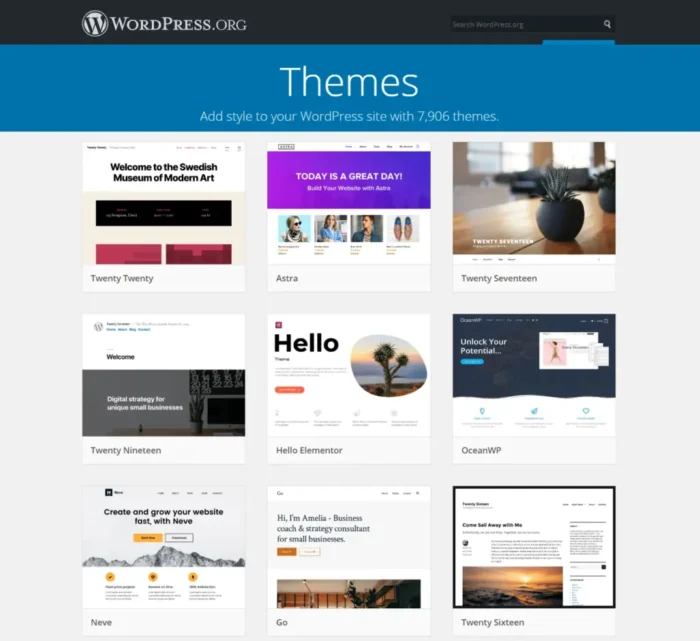
A generic template only goes so far before it starts limiting what a business actually wants its site to look and feel like. How to create custom theme in WordPress becomes the natural next question once a pre-built theme feels more like a compromise than a real fit. Building a custom theme takes real planning, but it’s not out of reach for someone willing to follow the process step by step. This guide breaks down the files, structure, and actual steps involved, along with a no-code option for anyone not ready to write PHP. Understanding Custom WordPress Theme Development Custom WordPress theme development means building a theme from scratch instead of modifying an existing one. This gives complete control over design, layout, and functionality, without fighting against a pre-built theme’s built-in limitations. A custom theme also tends to load faster than a bloated pre-built option, since it only includes exactly what the site actually needs, nothing extra sitting in the background slowing things down. This matters more than people expect once a site’s page speed starts affecting both user experience and search rankings. What Are the Essential Files Needed for a Custom WordPress Theme? Every WordPress theme, even the simplest one, requires a specific set of core files to function correctly. style.css — contains the theme’s stylesheet and header information WordPress uses to identify the theme index.php — the main template file WordPress falls back to when no more specific template exists functions.php — where custom features, widget areas, and theme functionality get defined header.php and footer.php — handle the site’s consistent top and bottom sections across every page screenshot.png — the thumbnail image WordPress displays in the theme selection screen These files form the minimum foundation, and creating a custom theme in WordPress almost always expands from here based on what the site actually needs, additional templates for pages, posts, or custom content types. What Is the WordPress Template Hierarchy and How Does It Work? WordPress decides which template file to load for a given page based on a specific order of priority, known as the template hierarchy. Understanding this hierarchy is one of the most important parts of custom WordPress theme development, since it determines exactly which file controls what content. For example, WordPress looks for a specific template like single-post.php before falling back to the more general single.php, and eventually to index.php if nothing more specific exists. This layered system gives developers precise control over how different content types display, without needing separate code for every single page manually. Read More: How to Setup WordPress on Xampp? 5 Steps to Develop a Custom WordPress Theme Building a theme from scratch follows a fairly consistent process once broken into clear stages. Set up a local development environment — tools like Local or XAMPP let you build and test safely before going live Create the core theme files — style.css, index.php, and functions.php form the starting foundation Build out the template structure — header, footer, and page templates based on the site’s actual layout needs Add custom functionality through functions.php — widget areas, menus, and theme support features get registered here Test thoroughly across devices and browsers — responsiveness and cross-browser compatibility matter before launch Following this WordPress theme creation guide in order prevents the common mistake of jumping into complex functionality before the basic structure actually works correctly. How Much Does It Cost to Create a Custom WordPress Theme? Costs vary significantly depending on complexity and who’s doing the work. A simple custom theme built by a freelance developer might run anywhere from $500 to $2,000, while a complex, feature-rich theme for a larger business site can climb well past $5,000 depending on functionality requirements. Hiring an agency typically costs more than a freelancer but often includes ongoing support and revisions built into the price. Learning to create your own WordPress theme instead saves significant cost long-term, though it requires investing real time upfront to learn the fundamentals properly. How to Build a WordPress Theme Without Code Not everyone wants to write PHP and CSS from scratch, and that’s a completely reasonable position. Page builder plugins like Elementor or block-based themes using the WordPress Site Editor let users build a custom-looking theme visually, without touching a single line of code. This approach trades some flexibility for accessibility, a no-code theme won’t offer quite the same level of control as a hand-coded one, but it gets a genuinely custom-looking site live far faster for someone without development experience. For a lot of small businesses, this tradeoff makes complete sense. Common Mistakes to Avoid When Building a Custom Theme A few recurring mistakes slow down or derail custom theme projects, even for people with some coding experience. Skipping proper testing across different browsers and screen sizes often leads to a theme that looks broken on mobile devices, which matters enormously given how much traffic now comes from phones. Ignoring WordPress coding standards can create security vulnerabilities or conflicts with plugins down the line. Building everything in one massive functions.php file instead of organizing code properly makes future updates far harder than they need to be. Not using a child theme when planning to modify an existing base theme is another common error, one that leads to losing every customization the moment that base theme gets updated. Conclusion How to create custom theme in WordPress ultimately comes down to understanding the core files, following the template hierarchy, and building step by step rather than rushing ahead. Whether coding from scratch or using a no-code page builder, the right approach depends on available time, budget, and technical comfort level. LocalPro1 Institute offers a WordPress course in Islamabad that covers exactly this kind of hands-on theme development skill. Contact LocalPro1 Institute today to start learning custom WordPress development properly. FAQs Do I need to know PHP to create a custom WordPress theme? Yes, for a fully hand-coded theme, though no-code page builders offer an alternative for those without coding experience. What is

How to Create Custom Theme in WordPress? Read More »

How to Start Learning Web Development

How to Start Learning Web Development?

Sitting in front of a blank screen wondering where to even begin is the most common starting point for anyone new to coding. How to start learning web development in Pakistan often begins with confusion, too many tutorials, too many languages, and no clear order to follow. That confusion stops most beginners before they write a single line of code. The good news is that web development follows a fairly predictable learning path once broken into clear steps. This guide walks through exactly what to learn first, which resources actually help, and how to build real proof of skill along the way. Understanding Web Development Web development involves building and maintaining websites, covering everything from visual design to backend functionality. It splits into three broad areas, front-end development, which handles what users see and interact with, back-end development, which manages servers and databases, and full-stack development, which combines both. Beginners generally start with front-end work, since it produces visible results faster and builds confidence early. This is exactly why learning web development from scratch usually begins with HTML, CSS, and JavaScript rather than jumping straight into complex backend systems or frameworks. Steps to Learn Web Development A clear sequence matters more than most beginners realize, jumping between topics randomly slows progress significantly. Learn the core building blocks first — HTML, CSS, and JavaScript form the foundation everything else builds on Practice by building small projects — a simple webpage, then a form, then something interactive Learn version control basics — Git and GitHub matter early, not as an afterthought later Pick one framework once fundamentals feel solid — React or a similar tool, not before basics are comfortable Build a small portfolio project — something real to show, not just completed tutorials Apply for entry-level roles or freelance work — real projects teach faster than more tutorials ever will Following these first steps in web development in order prevents the common mistake of jumping into frameworks before understanding what they’re actually built on. Master HTML, CSS, and JavaScript These three languages form the entire foundation of front-end web development, and skipping ahead before mastering them usually causes problems later. HTML structures a webpage’s content, headings, paragraphs, images, and links. CSS controls how that content looks, colors, spacing, layout, and responsiveness across different screen sizes. JavaScript adds interactivity, click events, form validation, and dynamic content that changes without reloading the page. Spending real time here matters more than rushing toward frameworks. A developer who understands these fundamentals deeply troubleshoots problems far faster than one who learned a framework without understanding what’s happening underneath it. Read More: What Is Plugin in Website? Choose the Right Learning Resources and Platforms Not every learning resource delivers the same value, and picking randomly wastes real time. Structured courses work better than scattered YouTube tutorials for most beginners, since they follow a logical sequence rather than jumping between unrelated topics. Interactive coding platforms that let learners write and test code immediately tend to build skill faster than video-only content, since actually typing code beats just watching someone else type it. A structured web development learning guide, whether through an online course or an in-person program, also provides accountability that self-directed learning often lacks. In Rawalpindi and Islamabad, students increasingly choose hands-on, project-based programs over purely video-based courses, largely because employers in Pakistan’s growing tech sector value practical experience over completed video playlists. Build Your Web Development Portfolio A portfolio matters more than a certificate when it comes to actually getting hired. Employers want proof of real skill, not just evidence that a course was completed. Start with two or three small projects that solve an actual problem, a personal website, a simple tool, or a clone of a familiar app’s basic functionality. Document the process, what was built, what challenges came up, and how they were solved, since this shows problem-solving ability, not just finished output. Hosting these projects publicly, on GitHub or a personal site, gives employers something concrete to review during hiring. Common Mistakes Beginners Make While Learning A few recurring mistakes slow down progress for people just starting out. Jumping into frameworks before understanding core JavaScript concepts often creates confusion that could’ve been avoided entirely. Watching endless tutorials without actually writing code independently builds false confidence, since recognizing code is very different from writing it from memory. Comparing personal progress to experienced developers online discourages many beginners unnecessarily, everyone starts somewhere, and comparison rarely reflects a fair timeline. Skipping small projects in favor of jumping straight to a large, ambitious one also tends to overwhelm beginners before they’ve built the confidence needed to finish it. Conclusion How to start learning web development ultimately comes down to following a clear sequence, HTML and CSS first, JavaScript next, then a framework once fundamentals feel solid, all supported by real projects rather than passive tutorial watching. Students across Pakistan increasingly favor structured, project-based learning over scattered self-study, and for good reason. LocalPro1 Institute offers Web Development course in Islamabad built around exactly this kind of hands-on, practical training. Contact LocalPro1 Institute today to start learning web development the right way. FAQs How long does it take to learn web development from scratch? Most beginners build solid foundational skills within four to six months of consistent, focused practice. Do I need a degree to become a web developer? No. Most employers prioritize practical skills and a strong portfolio over formal degrees in this field. Which programming language should I learn first for web development? HTML and CSS come first, followed by JavaScript, since these three form the foundation of front-end development. Is it better to learn web development online or through an in-person course? Both work, though in-person or structured programs in cities like Rawalpindi and Islamabad often provide more accountability and hands-on practice. What is the best beginner’s guide to web development for someone with zero experience? Starting with HTML and CSS through a structured course, then progressing to JavaScript and small projects, works well

How to Start Learning Web Development? Read More »

how to fix hacked wordpress site​

How to Fix Hacked WordPress | Site Quickly and Safely

If your site shows strange redirects, spam pages, or a security warning, act fast. The short answer for how to fix hacked WordPress sites is this: isolate the site, remove malicious files, restore from a clean backup, then reset every password and key. Every minute a hacked site stays online, it risks more damage to your rankings and your visitors. This guide walks through the full cleanup process, step by step, so nothing gets missed. What Does a Hacked WordPress Website Look Like? A hacked site rarely announces itself clearly. You might notice random pop up ads, strange redirects to unknown pages, or new admin accounts you never created. Google Search Console may also flag your site with a security warning. Other signs include a sudden traffic drop, spam links buried in your footer, or your hosting provider suspending your account. Some hacks stay hidden for weeks, quietly injecting spam pages that only show up to search engines, not regular visitors. What to Do Immediately After Your WordPress Site Is Hacked Put your site in maintenance mode or take it offline first. This stops the hack from spreading further and protects your visitors from malware. Change your hosting password right away, since attackers often reuse stolen credentials. Next, contact your hosting provider. Many hosts can confirm if the attack came through server level access or through your WordPress files directly. This detail matters for the cleanup steps ahead. Do not panic and delete files randomly. Removing the wrong files can break your site further or destroy evidence you need to understand the attack. How to Fix a Hacked WordPress Website This is the core process for how to fix hacked WordPress sites, and it works whether the hack is small or severe. Start by scanning your site with a trusted security plugin like Wordfence or Sucuri. These tools flag suspicious files, altered core files, and known malware signatures. Review every flagged file manually before deleting anything. Replace your WordPress core files, themes, and plugins with fresh copies from the official source. This removes any hidden code attackers may have added. Check your wp-config.php file closely, since attackers often hide backdoor scripts there. Search your database for suspicious entries too. Hackers commonly inject spam content into post tables or add rogue admin users directly through SQL. Once your files and database look clean, update every plugin, theme, and WordPress core to the latest version. How to Find How Your WordPress Site Was Hacked Fixing the damage without finding the entry point invites a repeat attack. Check your server error logs and access logs for unusual activity around the time the hack started. Common entry points include outdated plugins, weak passwords, nulled themes, and unpatched WordPress core versions. Review your installed plugins for anything unfamiliar or rarely updated by its developer. A plugin last updated three years ago is a common weak spot. If you cannot find the entry point yourself, a malware scan report from your security plugin usually points to the exact file where the infection started. How to Recover a Hacked WordPress Site From a Clean Backup A clean backup from before the attack is the safest recovery option. Restore your files and database from a backup taken before the infection date, not after. If you use a backup plugin like UpdraftPlus, check the backup history and pick a date well before any strange activity began. After restoring, run a fresh malware scan immediately to confirm nothing carried over. If you have no backup, manual cleanup through your security plugin becomes your only path. This takes longer but still works with careful file review. How to Check Whether Your WordPress Site Is Fully Clean Run a second full scan after your cleanup, using a different security tool than your first scan. Different tools catch different threats, so this step matters more than it seems. Check your site through Google’s Safe Browsing tool to confirm no warnings remain. Review your user accounts list and delete any admin account you do not recognize. Look through your scheduled tasks and cron jobs too, since some malware reinstalls itself automatically on a timer. What to Do If Google Flags Your WordPress Website If Google Search Console shows a security issue, submit a review request only after your site is fully clean. Submitting too early, before the malware is gone, delays your recovery and can hurt trust with Google further. Log into Search Console, go to the Security Issues section, and follow the review request steps. Google typically takes a few days to a couple weeks to clear a flagged site once it confirms the fix. How to Prevent Your WordPress Website From Being Hacked Again Prevention matters more than cleanup, since a repeat hack costs more time and trust. Use strong, unique passwords for every admin account and enable two factor authentication. Keep WordPress core, themes, and plugins updated at all times. Remove any plugin or theme you are not actively using, since inactive software still creates risk. Install a firewall plugin to block malicious traffic before it reaches your site. Limit login attempts and change your default login URL if your hosting setup allows it. Regular automated backups also give you a safety net if anything goes wrong again. WordPress Security Checklist After a Hack Change all passwords, including hosting, WordPress admin, and database Update WordPress core, themes, and plugins Remove unused plugins and themes Scan with two different security tools Review and remove unknown admin users Set up automated daily backups Enable two factor authentication Install a firewall plugin Monitor Search Console for new warnings Common Mistakes to Avoid When Fixing a Hacked WordPress Site Many site owners delete their entire WordPress install and start fresh without checking their backup for the same infected files. This just reinstalls the problem. Others skip the malware scan after cleanup, assuming the fix worked without confirming it. Some people also forget to update every plugin after cleanup, leaving the same vulnerable entry point

How to Fix Hacked WordPress | Site Quickly and Safely Read More »

What Is Plugin in Website? Simple Explanation for Beginners

Anyone building a website in Rawalpindi or Islamabad eventually runs into the term plugin, usually while trying to add a contact form or speed up a slow site. What is plugin in website come up constantly for beginners trying to add features without writing code from scratch. A plugin is essentially a small software add-on that extends what a website can do. This guide explains the plugin definition, how plugins actually work, and which types matter most for a functional, well-performing site. Plugin Definition To define a plugin simply, it’s a piece of software that adds specific functionality to a website without requiring changes to the site’s core code. Instead of building a contact form, a security system, or an SEO tool from scratch, a plugin installs that feature directly, ready to use within minutes. Most content management systems, WordPress being the most common example, rely heavily on plugins to extend basic functionality. A default WordPress installation handles content publishing well, but plugins add nearly everything else, e-commerce capability, contact forms, caching, and security scanning. Why Use a Plugin? Plugins exist because most website owners aren’t developers, and hiring one for every small feature adds up fast in cost and time. Installing a plugin instead means adding complex functionality in minutes rather than weeks. This matters a lot for small businesses across Pakistan, from a local shop in Rawalpindi setting up online orders for the first time to a service business in Islamabad adding a booking calendar. Plugins essentially hand real customization power to business owners with zero coding background, which is a large part of why platforms built around them have grown so widely used. Read More: Is SEO Part of Web Development? The Structure of a WordPress Plugin WordPress plugins typically follow a consistent structure behind the scenes, even though most users never see it directly. Each plugin includes a main file containing basic information, the plugin’s name, version, and author, along with the actual functional code that makes it work. Plugins hook into WordPress through specific connection points, allowing them to add features without altering WordPress’s core files directly. This separation matters because it means updates to WordPress itself, or to the plugin, generally don’t break the site’s foundation. A well-built plugin integrates smoothly, while a poorly coded one can slow a site down or create conflicts with other installed plugins, something local developers in Islamabad frequently get called in to troubleshoot. What Are the Different Types of Plugins? Plugins generally fall into several broad categories, each serving a distinct purpose. SEO plugins — help optimize content, meta descriptions, and site structure for search engine visibility Security plugins — scan for vulnerabilities, block malicious login attempts, and monitor suspicious activity Caching plugins — improve site speed by storing simplified versions of pages for faster loading Contact form plugins — add customizable forms without requiring custom code E-commerce plugins — turn a standard site into a functional online store with cart and checkout capability Backup plugins — automatically save site data in case something needs restoring after an error or attack Examples of plugins in each category include tools most website owners eventually install as their site grows, an SEO plugin early on, followed by caching and security tools once traffic increases. Importance of Plugins in Web Development and SEO Plugins play a direct role in how well a website performs in search results, not just how it functions day to day. An SEO plugin helps structure meta titles, descriptions, and sitemaps correctly, details that directly affect how search engines crawl and rank a site. Site speed also connects directly to plugins meaning in wordpress circles as a performance issue, not just a technical one. A slow site loses visitors and ranks lower, and caching plugins address that problem directly without requiring a full technical rebuild. Security plugins matter just as much, since a hacked or compromised site can lose search rankings entirely, sometimes for weeks, while the issue gets resolved. How to Choose the Right Plugins for a Website Not every plugin is worth installing, and choosing carefully protects both site performance and security. Checking a plugin’s update history matters more than people expect. A plugin that hasn’t been updated in over a year often signals it’s no longer actively maintained, which increases security risk significantly. Reading reviews and checking the number of active installations also helps gauge reliability, a plugin used by millions of sites with strong reviews is generally safer than one with minimal adoption. Avoiding plugin overload matters too, installing too many at once can slow a site down and create conflicts between plugins trying to control the same feature. Common Plugin Mistakes Beginners Make A few recurring mistakes cause real problems for website owners just getting started with plugins. Installing plugins from unverified sources outside the official WordPress repository introduces real security risk, since these often lack proper vetting. Leaving unused, deactivated plugins installed rather than deleting them entirely still leaves potential vulnerabilities on the site. Skipping regular plugin updates is another common issue, since outdated plugins are one of the most frequent entry points for website hacks. Businesses working with a local developer in Rawalpindi or Islamabad often avoid these mistakes simply by having someone manage updates and plugin choices consistently. Conclusion What is plugin in website ultimately comes down to functionality, plugins let a site do more without requiring custom code for every single feature. From SEO and security to speed and e-commerce, choosing the right plugins shapes how well a website actually performs. LocalPro1 Institute offers a Web development course in Rawalpindi that covers exactly this kind of practical, hands-on skill. Contact LocalPro1 Institute today to start learning web development the right way. FAQs What is the plugin definition in simple terms? A plugin is a piece of software that adds specific features to a website without changing its core code. What are some common examples of plugins? Common examples of plugins include SEO tools, security scanners, caching software,

What Is Plugin in Website? Simple Explanation for Beginners Read More »

How to Setup Wordpress on Xampp

How to Setup WordPress on Xampp | Step-by-Step Guide

To set up a local WordPress site on your computer, you need a local server environment. XAMPP provides Apache web server software, MySQL database engine, and PHP processing on your local machine. This setup lets you build, edit, and test websites without buying a domain or web hosting. You get a secure sandbox to try out plugins, design custom themes, and fix site bugs offline. Building a local website saves time and keeps your unfinished work safe from public view. Beginners and experienced web developers use local server tools to practice coding and test site updates. Knowing how to setup WordPress on Xampp gives you full control over your web development workspace. Follow this step-by-step guide to configure your local test site quickly and easily. What Is XAMPP? XAMPP is a free, open-source local server software package created by Apache Friends. The name is an acronym for its core software stack: X: Cross-platform compatibility for Windows, Mac, and Linux systems. A: Apache web server software that serves your site pages. M: MariaDB or MySQL database management system for storing site data. P: PHP programming language that powers WordPress scripts. P: Perl scripting language used for additional backend task management. When you install this software stack, your personal computer acts like a web server. It processes PHP scripts and reads database tables locally without an internet connection. This makes xampp wordpress development fast and reliable. Why Use XAMPP for WordPress? Testing your site on a local server brings several practical benefits: Zero Cost: You do not need to purchase a live domain name or monthly web hosting. Speed and Performance: Local files load instantly without server latency or network connection delays. Complete Privacy: Your test site stays hidden from search engine crawlers and public site visitors. Safe Sandbox: You can test new themes, updates, and custom code without breaking a live business site. Offline Access: You can code and build pages anywhere, even without active internet access. Using wordpress for xampp lets you experiment freely before launching your project live on the internet. You can read about: How to Connect Your Domain to WordPress System Requirements for Installing XAMPP Before downloading software files, make sure your computer meets these basic system hardware and operating system requirements: Operating System: Windows 10 or 11, macOS 10.13 or newer, or Linux distribution. Processor: Minimum 1.5 GHz single-core processor, though multi-core CPUs work best. RAM Memory: At least 2 GB of RAM (4 GB or more recommended). Storage Space: Minimum 1 GB of free hard drive space for server files and site databases. User Privileges: Administrator privileges on your operating system to install services and open network ports. Meeting these basic requirements ensures Apache and MySQL run smoothly on your local desktop. What You Need Before Setting Up WordPress on XAMPP Gather these three essential items before starting your installation process: XAMPP Software Installer: Download the latest release from the official Apache Friends site. WordPress ZIP Package: Download the newest core version from the official wordpress.org website. File Extraction Tool: Use default Windows Explorer extraction or software like WinRAR or 7-Zip. Having these resources ready will speed up your workflow as you learn how to setup WordPress on Xampp without interruption. Download and Install XAMPP Follow these clear instructions to download and install the local server package: Visit the official website at apachefriends.org in your web browser. Choose the download installer suited for your operating system version. Open your download folder and double-click the installer executable file to begin setup. Click next on the initial installer screen to view the software component list. Select Apache, MySQL, phpMyAdmin, and PHP from the options list. Pick your installation folder directory. The default location C:\xampp works best for Windows users. Click next to start copying software files onto your hard drive. Uncheck any extra browser extension boxes and click finish to launch the control panel. If Windows Defender asks for network permissions, grant access so Apache and MySQL can communicate locally. Start Apache and MySQL in the XAMPP Control Panel Your local server software needs active background services to load PHP files and store database data. Open the Control Panel application from your desktop or start menu. Look at the module list for Apache and MySQL server lines. Click the Start button next to Apache. The module background turns green when active. Click the Start button next to MySQL. The module background turns green when active. Check port numbers. Apache usually uses port 80 and 443, while MySQL uses port 3306. Keep this control panel window open while working on your local site. If you shut down these modules, your browser cannot load your local pages. Download and Extract WordPress Files Get the core content management files to install wordpress on xampp: Open your internet browser and navigate to wordpress.org/download. Click the download button to save the newest version ZIP archive file to your machine. Open your local Downloads folder to locate the downloaded ZIP package. Right-click the package file and select Extract All. Choose a folder destination on your desktop to store the uncompressed files. Open the newly created folder to confirm it contains core files like wp-config-sample.php and index.php. Keep this uncompressed folder open on your computer screen for the next step. Copy WordPress Files to the htdocs Folder The htdocs directory is the public root folder for your local server environment. Open File Explorer and navigate to your main installation directory at C:\xampp. Locate and open the folder named htdocs. Create a brand-new subfolder inside htdocs. Give it a clear name like mysite or testblog. Go back to your extracted core files folder and select every file and subfolder inside it. Copy all those files and paste them directly inside your new C:\xampp\htdocs\mysite folder. Your website URL path will match this folder name. For example, localhost/mysite will load your local website. Create a MySQL Database Using phpMyAdmin WordPress requires a database to store post content, user credentials, settings, and page layouts. Make sure Apache

How to Setup WordPress on Xampp | Step-by-Step Guide Read More »

how to duplicate a page in wordpress​

How to Duplicate a Page in WordPress | Easy Step-by-Step

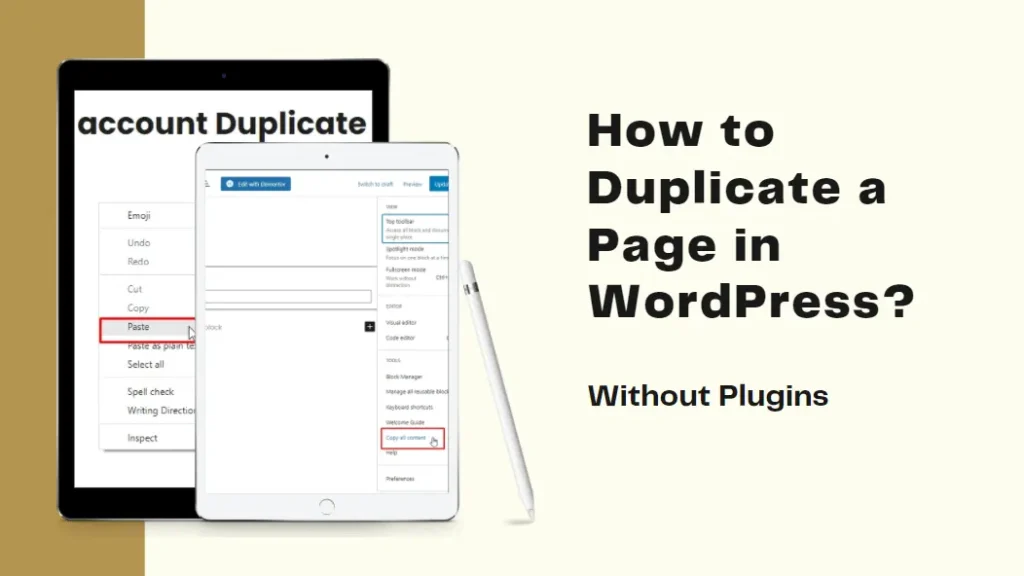
You can clone a page in WordPress in under one minute. The fastest way is using a free plugin like Duplicate Page or Yoast Duplicate Post. If you prefer no plugins, you can copy all blocks directly inside the block editor or add a quick code snippet to your theme file. Cloning creates an exact draft copy of your original layout, text, and custom settings. This guide gives clear steps on how to duplicate a page in wordpress using free tools and manual tricks. You will save time and keep your site design uniform. What Does It Mean to Duplicate a Page in WordPress? To clone a page means creating an exact copy of an existing page on your site. The new page gets created as a draft. It keeps all content, layout choices, media files, and SEO metadata from the original version. When you copy a page, WordPress leaves your live original page untouched. The new draft page gets its own unique URL structure. You can edit text, swap images, or update headings without risking your live site setup. It acts like a fresh sandbox for your content. You can read about: What Is the Best Way to Learn WordPress Why Would You Duplicate a Page in WordPress? Creating pages from scratch takes a lot of time. You have to rebuild layouts, recheck fonts, and reselect color choices. Cloning removes this repetitive work. Here are the top reasons site owners duplicate content: Design consistency: You can reuse complex landing page layouts across multiple campaigns. Redesigning active pages: You can test new design ideas on a draft clone without breaking your live page. Saving custom forms: You can keep pre-built forms, call to action buttons, and custom sidebar settings ready to go. Client drafts: You can show layout ideas to clients before putting new content live. Can You Duplicate a WordPress Page Without a Plugin? Yes, you can. You do not always need a plugin to copy your content. WordPress has built-in tools inside the Block Editor that let you copy content fast. You can also use manual code snippets inside your functions file or export your site XML data. However, plugins remain the easiest path for beginner users who want a single click solution directly inside the admin list. Method 1: Duplicate a Page Using the Duplicate Page Plugin The Duplicate Page plugin is one of the most popular tools available. It is lightweight, fast, and easy to use. Here are the step-by-step instructions: Log in to your WordPress dashboard. Go to Plugins, then click Add New. Search for Duplicate Page. Click Install Now, then click Activate. Go to Pages, then click All Pages. Hover your mouse over the page you want to copy. Click the new Duplicate This link. Your new cloned draft appears immediately in your pages list. Learning how to duplicate a page in wordpress with this tool requires zero technical knowledge. You can change settings to save copies as drafts, published pages, or private posts. Method 2: Duplicate a Page Using Yoast Duplicate Post If you already use Yoast SEO, you might not need a new plugin. Yoast offers a dedicated plugin called Yoast Duplicate Post. It gives you deep control over what data gets copied. Follow these steps to set it up: Go to Plugins, then click Add New. Search for Yoast Duplicate Post. Install and activate the plugin. Go to Pages, then click All Pages. Hover over your target page. Click Clone to make a quick copy. Click New Draft if you want to open the editor immediately. This tool lets you select whether to copy page authors, published dates, or custom field data. Knowing how to duplicate a wordpress page with Yoast gives you great flexibility for complex sites. Method 3: Duplicate a Page Without a Plugin If you want to keep your site free of extra plugins, you can use code. You add a simple PHP code snippet to your active theme files. Always back up your site before editing theme files. Go to Appearance, then open Theme File Editor. Open your functions.php file on the right side. Paste a standard WordPress post duplication code snippet at the bottom. Save the file changes. Go to Pages, then click All Pages. Look for a new Duplicate button on hover. This code tells WordPress to read the original page database entry. It creates a matching database entry marked as a draft. It is a clean way to duplicate page wordpress without adding plugin weight. Method 4: Duplicate a Page Using the WordPress Block Editor (Copy All Blocks) The block editor, also known as Gutenberg, has a built-in block copying feature. You do not need to install anything or edit theme files. Here is how to use it: Open the page you want to copy inside the editor. Click the three vertical dots in the top right corner. Click Copy all blocks from the dropdown menu. Go back to your dashboard and create a brand new page. Click inside the blank editor area. Paste the copied content using keyboard shortcuts or right click paste. This approach lets you copy a wordpress page in seconds. It transfers all layout blocks, text, and styles directly into your fresh draft. However, it does not copy page titles, SEO metadata, or custom page attributes. You must enter those details manually. Best Plugins to Duplicate WordPress Pages While we highlighted two top plugins earlier, several other great options exist. Choosing the right tool depends on your workflow needs. Here is a list of top plugins: Duplicate Page: Simple, fast, and works with custom post types. Yoast Duplicate Post: Offers advanced options for meta tags and taxonomies. Duplicate Page and Post: A lightweight option focused on speed. Post Duplicator: Great for copying custom post fields and custom taxonomies. WP Stagecoach: Useful when copying pages across staging environments. All these options help you duplicate a wordpress page with reliability. Pick one that matches your current site setup. What Should You

How to Duplicate a Page in WordPress | Easy Step-by-Step Read More »

How to Connect Your Domain to WordPress

How to Connect Your Domain to WordPress the Right Way?

A finished website with the wrong web address feels unfinished, and that’s usually the exact moment people search how to connect your domain to wordpress. The process isn’t complicated once it’s broken into clear steps, but skipping one detail can leave a site inaccessible for hours. This guide walks through the entire process, from understanding what a custom domain actually does to updating WordPress settings after the connection is live. Understanding Custom Domains in WordPress A domain is the web address people type to reach a website, something like yourbusiness.com instead of a default WordPress subdomain. Without one, a site typically runs on a generic address provided by the hosting platform, which looks unprofessional and is harder for visitors to remember. WordPress itself doesn’t sell domains directly in most self-hosted setups. Domains get purchased through a separate registrar, then connected to the WordPress site through DNS settings, a process that sounds technical but follows a fairly consistent pattern across most hosting providers. What Is a Custom Domain and Why Does Your WordPress Site Need One? A custom domain is a unique web address registered specifically for a business or individual, rather than a shared or default one provided automatically. Assign a domain to a WordPress website and the site gains credibility instantly, visitors trust a proper domain far more than something ending in a hosting company’s subdomain. Search engines also factor in domain consistency when ranking sites. A custom domain supports better branding, easier email setup, and stronger long-term SEO performance compared to relying on a temporary or generic address. How to Connect a Domain to WordPress Connecting a domain to WordPress generally follows the same core steps, regardless of which registrar or hosting provider is involved. First, purchase the domain through a registrar like GoDaddy, Name cheap, or a similar provider. Next, log into the hosting account where WordPress is installed and locate the domain management section. Add the domain there, then update the domain’s DNS settings to point to the hosting provider’s servers. Finally, confirm the domain is correctly linked by checking that the site loads under the new address instead of the temporary one. This sequence covers how to add a domain to WordPress for most standard hosting setups, though specific menu names and steps vary slightly between providers. Read More: How Long Does It Take to Become a Web Developer? Which DNS Settings Should You Configure for WordPress? DNS settings act as the bridge between a domain and the server hosting a WordPress site. Two records typically matter most here. The A record points the domain to the hosting server’s IP address, which is usually the most critical setting for getting a site to load correctly. The CNAME record often handles subdomains, like connecting to the main domain. Most hosting providers supply the exact IP address or nameserver details needed, and getting these values wrong is the most common reason a domain fails to connect properly. Changing nameservers at the registrar level is another common approach, pointing them directly to the hosting company’s nameservers instead of manually editing individual DNS records. Both methods work, though nameserver changes are often simpler for beginners since the hosting provider manages the technical details automatically. How to Update Your WordPress Settings After Connecting a Custom Domain Once the domain technically connects, WordPress itself still needs updating to reflect the change. Inside the WordPress dashboard, under Settings and then General, both the WordPress Address and Site Address fields need updating to match the new domain exactly. Skipping this step often causes broken links, missing images, or redirect loops, even when the DNS connection itself works correctly. After updating these settings, clearing the site’s cache and checking that all pages load properly under the new domain confirms the setup is complete. How Long Does DNS Propagation Take? DNS changes don’t take effect immediately across the internet. Propagation, the process of DNS changes spreading across servers worldwide, typically takes anywhere from a few hours to 48 hours, depending on the registrar and existing DNS cache settings. During this window, a site might load correctly for some visitors while still showing the old address to others. This is normal and doesn’t indicate a failed setup, patience during this waiting period prevents unnecessary troubleshooting for a process that simply needs time to complete. Common Mistakes When Connecting a Domain to WordPress Several avoidable errors cause unnecessary delays or downtime during this process. Forgetting to update the WordPress Address and Site Address fields after the domain connects is one of the most frequent issues, leaving the site technically connected but functionally broken. Entering incorrect A record values, even a single digit off, prevents the domain from resolving at all. Skipping SSL certificate setup after the domain change often triggers browser security warnings that scare visitors away. Not backing up the site before making DNS changes is another risk, since a mistake mid-process can leave a site temporarily inaccessible with no easy way to revert. Conclusion How to connect your domain to wordpress comes down to a clear sequence, purchasing the domain, updating DNS settings, and confirming WordPress reflects the change correctly. Getting these steps right the first time avoids downtime and keeps a site accessible without unnecessary troubleshooting. LocalPro1 Institute offers web development in Islamabad for businesses that want this process handled correctly from the start. Contact LocalPro1 Institute today for help setting up a custom domain in WordPress. FAQs How long does it take to connect a domain to WordPress? The technical setup usually takes under an hour, though full DNS propagation can take up to 48 hours to complete worldwide. Can I connect a domain to WordPress without technical experience? Yes. Most hosting providers offer guided domain connection tools, though errors in DNS settings still commonly require troubleshooting support. Do I need to buy a domain and hosting from the same company? No. Domains and hosting can be purchased separately and connected through DNS settings regardless of which companies provide each service. What

How to Connect Your Domain to WordPress the Right Way? Read More »